Monitor Arms: The Complete Buying Guide
A good monitor arm mount lifts your screen off the desk and lets you set height, reach and angle in seconds. Check your monitor size, weight and VESA pattern first, then match the arm type and desk mount to your desk thickness and how you sit or stand.
On this page (10 sections)
- What is a monitor arm mount and how does it work?
- How does a monitor arm compare with a stand or riser?
- Which arm type fits your monitor and desk?
- How do you check VESA fit, screen size and weight?
- Which desk mount should you choose for your desk?
- How do you set height, reach and angle for sitting and standing?
- How do you install a desk clamp arm without damaging your desk?
- What mistakes should you avoid when you buy a monitor arm?
- Explore monitor & laptop stands by topic
- Which monitor arm should you pick for your set up?
A good monitor arm mount lifts your screen off the desk and lets you set height, reach and angle in seconds. You can pull the screen closer, push it back, turn it for a call and rotate it to portrait mode.
That freedom matters most on a height adjustable desk. When you switch from sitting to standing, your eye level changes by many inches.
A fixed stand cannot follow you. An arm can.
We compared specs, weight limits, reach and mounting options across single monitor arms. We looked at what fits a 24 inch office screen, a 32 inch curved display and a 34 inch ultrawide.
We also checked which arms suit a laptop with a tray, a portable monitor and a multi screen set up.
This guide explains arm types, mounting choices, compatibility and adjustment. It covers arm mount for monitor buyers who want one screen, and best monitor arm mount shoppers who plan to upgrade later.
It also covers monitor with arm mount set ups for work, study and gaming.
What is a monitor arm mount and how does it work?
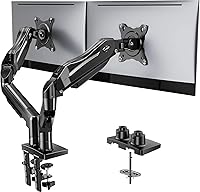
A monitor arm mount holds your monitor on a jointed arm that clamps or bolts to your desk. The arm has a base, a pole or a folding arm, and a VESA plate that screws to the back of the screen.
Joints between those parts let you move the monitor through space.
Most single arms use VESA 75x75mm or 100x100mm patterns. Those four hole spacings are standard on many flat and curved monitors.
Smaller portable screens may use a different pattern or need an adapter. Always check the back of your own monitor before you order.
The arm does three jobs at once. It raises the bottom of the screen so you can store items below.
It moves the screen forward or back to match your viewing distance. It angles the screen up or down so the top of the screen sits near eye level.
Those moves help you keep a more neutral neck position while you work.
You will see two main smoothness systems. A gas spring uses a sealed strut that pushes up to balance the monitor weight.
A mechanical spring uses a coil that you set with a tension knob. Each system can work well.
The key is matching the spring range to your monitor weight.
If you want a plain explainer first, read what is a gas spring monitor arm. It breaks down how that spring feels in daily use and when it helps.
How does a monitor arm compare with a stand or riser?
A monitor arm beats a stand on adjustment range and desk space. A stand gives you a fixed height and a fixed reach.
An arm gives you height, reach, tilt, swivel and rotation. That larger range is why many buyers choose an arm for sit stand desks.
A stand or riser still has a place. A best monitor riser for desk can lift a screen without any clamp or holes.
A best freestanding monitor stand can suit a desk you cannot clamp, such as a glass top or a shared desk where you cannot attach hardware.
An arm usually frees more space. The screen floats above the desk, so a keyboard, dock or notebook can slide under it.
The arm itself folds back toward the wall. A riser shelf can block that same area with its legs or storage box.
Compare monitor risers with storage if you want a shelf that adds organization.
An arm also costs more and needs more setup care. You must check VESA fit, weight and desk edge strength.
You must route cables so they do not pull as the arm moves. A simple stand avoids those steps and can be moved between desks in seconds.
Our full comparison with trade offs is in monitor arm vs stand. Use it if you are still deciding between the two styles.
For a laptop on a desk, the choice shifts again. An best adjustable laptop stand for desk is light and portable.
A laptop tray on an arm lets you raise the laptop and use an external keyboard. A best foldable laptop stand suits travel more than a fixed desk set up.
An best adjustable laptop stand for bed suits bed work, not a full desk height change.
Which arm type fits your monitor and desk?
Single monitor arms hold one screen on one desk base. Compare reach and weight limit first, using best single monitor arm.
Gas spring arms make height changes easy with one hand. Check best gas spring monitor arm if you switch heights often.
The spring vs gas monitor arm guide helps match the mechanism to your weight.
Fixed joint and mechanical spring arms suit a set height. They can hold heavier monitors when rated for that load.
Check the minimum weight too, as some springs feel stiff with a very light screen.
Dual arms hold two screens on one base or pole. For a product example, read the Ergotron LX dual monitor arm review.
See best dual monitor arms for side by side, reference, and portrait plus landscape pairs.
Match each screen weight to each arm.
Three screen set ups need more reach, pole height and desk edge space. See best monitor arms for 3 monitors.
For a laptop with three screens, read triple monitor with laptop mount.
Ultrawide screens need stronger arms and more reach. See best monitor arm for ultrawide and check the weight limit with care.
Curved screens add depth behind the VESA plate, so confirm clearance at full tilt.
Portable monitors may need a smaller VESA plate or adapter. See best arm for portable monitor.
A large arm may not hold a tiny screen smoothly if its spring starts at a higher weight.
Wall mounts free the desk edge. For setup steps, read how to use a monitor wall mount.
A best monitor wall mount works best with fixed studs, height and viewing distance.
It is less flexible if you move desks or change layout often.
Ergotron NX Single Monitor Arm for a clean single screen set up
The Ergotron NX Single Monitor Arm fits single screens up to 34 inches and 0 to 18 lb, with VESA 75x75mm and 100x100mm patterns. It mounts with a desk clamp for surfaces up to 2 inches thick.
The arm has 360 degrees of pan, 35 degrees of tilt and 360 degrees of rotation. Ergotron backs it with a 5 year warranty.
This arm suits buyers who want a tidy single screen set up that folds close to the wall. Its 14.5 inches of extension lets you pull the screen forward for close work or push it back for more desk room.
The low profile design helps keep the desk edge clear.
Ergotron says the arm assembles with one tool and includes base, pole, arm, pivot, cable clips, installation tool and VESA hardware. A notebook tray accessory can turn it into a laptop arm when you add an external keyboard.
That tray is sold separately.
Pick this arm if you value a clean look and a lower weight limit. Skip it if your monitor weighs more than 18 lb or if you need more tilt than 35 degrees.
Check the best monitor arm north bayou page if you want to compare other single arm brands in the same size band.
WALI Adjustable Single Monitor Arm for heavier screens and taller reach
The WALI Adjustable Single Monitor Arm fits flat or curved screens up to 34 inches, with regular screens up to 32 inches. It holds up to 26.4 lb for flat screens and 19.8 lb for curved screens.
It uses VESA 75x75mm and 100x100mm patterns. WALI backs it with a 10 year warranty.
This arm suits buyers who need more reach and height than a compact arm gives. It extends out by 19.3 inches and raises up to 17.3 inches above the desktop.
It swivels 180 degrees each way, tilts from +70 to -45 degrees and rotates 360 degrees. That range helps with portrait work and shared viewing.
WALI offers C clamp mounting for desks 0.39 to 2.76 inches thick, or grommet base mounting for the same thickness range. The maker recommends a wooden desk with no crossbeam blocking the underside.
That note matters on sit stand desks with a thick crossbar.
Pick this arm if you have a heavier flat screen or a tall standing height. Check your curved screen weight against the lower 19.8 lb limit.
If you prefer a white finish, see best white single monitor arm for colour matched options.
ErGear Single Monitor Arm for fast VESA set up and wide tilt
The ErGear Single Monitor Arm fits 13 to 34 inch flat or curved monitors up to 19.8 lb, with VESA 75x75mm or 100x100mm patterns. It gives up to 17.5 inches of height adjustment and 18.1 inches of reach.
It tilts +80 to -50 degrees, swivels plus or minus 90 degrees and rotates 360 degrees. The maker gives a 2 year warranty.
This arm suits buyers who want a fast set up and a wide tilt range. The VESA plate mounts without tools in three steps.
Cable clips open without tools, so you can tidy cords after you set the height. The arm lifts the screen to free desk space below.
ErGear offers C clamp mounting for desks 0.39 to 2.56 inches thick, or grommet base mounting for desks 0.39 to 2.95 inches thick. That grommet range is wider than the clamp range on many desks.
Check your desk top and any edge trim before you choose the mount type.
Pick this arm if you change screens often or want tool free VESA changes. Skip it if your monitor weighs more than 19.8 lb.
Compare brand options in best vivo single monitor arm, best huanuo single monitor arm and best vivo monitor arm if you want more single arm choices.
How do you check VESA fit, screen size and weight?
VESA fit is the first filter. Find the four screw holes on the back of your monitor.
Measure the horizontal and vertical spacing in millimetres. Most arms here accept 75x75mm or 100x100mm.
If your screen uses 200x200mm, you may need a different arm or an adapter plate.
Screen size is the second filter. Makers rate arms by diagonal size and by weight at the same time.
A 34 inch screen can weigh 12 lb or 20 lb. The weight number decides if the spring will hold it.
The size number decides if the arm can reach far enough and tilt without hitting the desk.
Weight limits differ for flat and curved screens. A curved panel can sit deeper behind the mount and create more leverage.
WALI rates its arm at 26.4 lb for flat screens and 19.8 lb for curved screens. ErGear rates its arm at 19.8 lb across its 13 to 34 inch range.
Ergotron rates the NX arm at 0 to 18 lb.
Check the minimum weight as well as the maximum. A gas spring set for a heavy ultrawide may push a light 13 inch screen up too far.
A mechanical spring often lets you dial tension down for a light panel. If you plan to swap monitors, choose an arm with a wide weight range.
Check tilt clearance too. A large screen tilted down can hit the desk if the arm is short.
A curved screen tilted back can hit a wall if the arm folds back too far. Set the arm at its closest point and test full tilt before you lock the height.
Confirm what is in the box for your exact order. Ergotron includes base and pole, arm, pivot, cable routing clips, installation tool and VESA hardware.
Keep the VESA screws that fit your monitor depth. Screws that are too long can damage the screen from inside.
Which desk mount should you choose for your desk?
A desk clamp grips the edge from below and needs no holes. It suits most wooden and sit stand desks, and it can move to another desk later.
Check thickness against the clamp range. Ergotron fits up to 2 inches, WALI C clamp fits 0.39 to 2.76 inches, and ErGear C clamp fits 0.39 to 2.56 inches.
Measure the top plus edge trim.
Check under the desk edge for a crossbeam, drawer or cable tray. WALI recommends a wooden desk with no crossbeam blocking the underside.
Move the clamp to a clear section or use a grommet mount if a hole exists.
A grommet mount bolts through a cable hole or drilled hole. WALI grommet fits 0.39 to 2.76 inches thick, and ErGear grommet fits 0.39 to 2.95 inches thick.
You need a hole in the right spot and room under the desk.
A freestanding base needs no holes and suits glass or rental desks. It takes more space and can slide if you pull the arm hard.
Wall mounts fix the screen to studs or anchors at a fixed height and distance. Test your standing eye level before you drill, as they do not move with a sit stand desk.
For clamp ideas, see best desk clamp monitor mount. For replacement plates and hardware, see best monitor arm parts.
For sit stand use, the arm must clear the desk top at its lowest point and reach eye level at its highest point. See best monitor arm for sit stand desk for taller poles and longer reach.
How do you set height, reach and angle for sitting and standing?
Set the arm once for sitting, then check it again for standing. Sit in your normal chair with your feet flat.
Raise the screen until the top edge sits at or just below eye level. Pull the screen close enough that you can read without leaning forward.
Tilt the screen back a few degrees. A slight upward tilt lets you look down at the centre of the screen without tipping your head.
Avoid a steep tilt that creates glare from a window or overhead light. Small angles often work best for office work.
Set reach next. A closer screen can feel sharper for text, but it can also crowd your keyboard.
A farther screen can give you more desk room, but it can make small text harder to read. Test both positions with your real documents before you route the cables.
Rotate to portrait only if you use tall documents or code. Portrait mode can reduce horizontal scrolling and help with long pages.
Check that the screen clears the desk and the wall at full rotation. A wide landscape screen rotated to portrait needs height as well as width.
Save two positions if you switch between sitting and standing. Note the pole height, arm extension and tilt for each position.
Many arms let you mark the pole or snap a photo of the set up. That saves time on the next change.
For a standing desk, set the monitor first, then set the desk height to match. If the desk rises but the screen stays low, you will look down.
If the screen rises but the desk stays low, your arms may tire. Move both parts together until your elbows sit near a right angle.
Brand specific picks can help you compare adjustment ranges quickly. See best mount it monitor arm and best mount up monitor arm for other brands with different pole heights and tilt ranges.
How do you install a desk clamp arm without damaging your desk?
Read the manual for your exact arm before you tighten anything. Most installs follow the same order.
Attach the clamp or base to the desk. Fit the pole or arm to the base.
Screw the VESA plate to the monitor. Lift the monitor onto the arm and lock it in place.
Keep a helper for the lift step. A 32 inch or 34 inch screen is wide and awkward to hold with one hand.
Set the VESA screws while the screen rests on a soft surface. Do not let the screen face roll onto its corner.
Tighten the clamp with firm, even pressure. A clamp that is too loose will let the arm drift.
A clamp that is too tight can dent a soft desk edge. Check the maker range for your desk thickness.
Ergotron's clamp fits up to 2 inches. WALI and ErGear publish wider thickness ranges for their clamp and grommet options.
Route cables after you set the height. Leave a gentle loop at each joint so the cables can bend as the arm moves.
Tight cables act like a spring and can pull the screen out of position. Cable clips help, but they should not force a sharp bend.
Test the full range before you finish. Raise and lower the arm.
Tilt up and down. Swivel left and right.
Rotate to portrait if you plan to use it. Watch for cable pull, desk contact and wall contact at each stop.
Fix the problem now, not after you add a dock and keyboard.
Keep spare VESA screws and the installation tool in a drawer. Ergotron includes an installation tool in the box.
Other arms use standard hex keys. Spares help if you swap monitors or move desks later.
What mistakes should you avoid when you buy a monitor arm?
Do not buy by screen size alone. A 34 inch ultrawide can weigh more than an arm allows.
Weigh your monitor or check its spec sheet. Then compare that number with the arm limit for flat or curved screens.
Leave a margin if you plan to add a camera or a light bar.
Do not ignore the VESA pattern. An arm with 100x100mm holes will not fit a screen that needs 200x200mm without an adapter.
Measure the holes on the back panel. Check again if you plan to change monitors soon.
Do not skip the desk thickness check. A clamp rated to 2 inches will not close on a 2.5 inch desk top.
Measure the top plus edge trim and any reinforcement. Check the underside for crossbeams and cable trays before you order.
Do not set the screen too high. Many buyers place the centre of the screen at eye level.
That forces you to look up. The top edge near eye level is a better start for office work.
Lower the screen and tilt it back a little.
Do not route cables tight. Tight cables pull against the joints and can make the screen sag or drift.
Leave slack at each bend. Use clips to guide the cables, not to force them straight.
Do not assume one arm suits every screen you own. A light portable monitor and a heavy ultrawide need different spring ranges.
A laptop tray adds weight and changes balance. Match each screen to its own arm or tray limit.
Explore monitor & laptop stands by topic
- Best Kensington Monitor Arms
Which monitor arm should you pick for your set up?
Pick the Ergotron NX for a slim white arm for a single screen up to 18 lb. It folds close to the wall, routes cables through the arm, and suits a 24 to 32 inch office screen.
Pick the WALI arm for more reach, height and a higher limit. It fits flat screens up to 26.4 lb with clamp or grommet mounting.
It suits a heavier 32 or 34 inch screen and tall standing height.
Pick the ErGear arm for fast tool free VESA changes and wide tilt. It fits 13 to 34 inch screens up to 19.8 lb, with 17.5 inches of height and 18.1 inches of reach.
It suits buyers who swap monitors or adjust angles often.
Pick a dual arm for two screens side by side every day. Pick a three arm set up for a wide timeline or reference screen.
Pick a wall mount if your desk and wall layout will not change.
Pick a stand or riser if you cannot clamp or drill and move desks often. Pick a laptop stand for a light portable lift, or a laptop tray arm to raise the laptop to eye level with an external keyboard.
Before you order, write down screen size, screen weight, VESA pattern and desk thickness. Those four numbers rule out most wrong arms.
Then compare reach, height and tilt for sitting and standing.
A monitor arm frees desk space and sets your screen at eye level. Match the arm to your monitor and desk first, then set it up for a tidy desk.
Frequently asked questions
What is a monitor arm mount?
A monitor arm mount is a desk or wall bracket that holds your monitor on an articulated arm instead of a stand. You can raise, lower, tilt, swivel and rotate the screen to eye level.
It also frees desk space below the screen for a keyboard, notebook or dock.
How do I know if a monitor arm fits my monitor?
Check three numbers before you buy: screen size in inches, monitor weight in pounds, and VESA pattern in millimetres. Most arms here fit 13 to 34 inch screens with 75x75mm or 100x100mm holes.
Stay under the arm weight limit, not just inside the size range.
Can I use a monitor arm on a standing desk?
Yes, if the arm can reach your preferred height and the desk edge can hold the clamp. A taller pole and longer reach help at standing height.
Check desk thickness against the clamp range and leave room for the arm to fold back without hitting a wall.
What is the difference between a desk clamp and a grommet mount?
A desk clamp grips the edge of the desk and needs no holes. A grommet mount bolts through an existing cable hole or a drilled hole.
Clamps suit most desks.
Grommets can feel very stable but need a suitable hole and access under the desk.
Do I need a gas spring monitor arm?
A gas spring helps the arm hold position with light effort as you raise or lower it. It suits frequent height changes and heavier screens within the limit.
A mechanical spring or fixed joint can also work well if you set the height once and move the screen less often.