How to Choose a Standing Desk Converter with a Monitor Mount
Choose a standing desk converter with a monitor mount only after checking how the mount attaches, its weight limit, and the converter’s stability. Confirm the monitor’s VESA pattern and weight, then measure the raised workspace and the desk below it.
On this page (6 sections)
- What should you check before choosing a standing desk converter with a monitor mount?
- Will the converter stay stable with a monitor arm?
- How much workspace does a monitor mount need?
- Which monitor setup fits your needs?
- How do you set up a converter and monitor mount safely?
- How do you choose the right standing desk converter with monitor mount?
A standing desk converter with monitor mount can free up surface space and make screen positioning easier, but only if the arm fits the converter and supports your monitor. Check the monitor’s VESA pattern and weight, the clamp’s fit, and the converter’s stability before choosing.
Some converters have a dedicated mount, while others use a separate arm or a fixed shelf. The difference affects what you can attach and how much room remains for your keyboard and mouse.
If you’re still deciding whether to raise your current desk or replace it, compare a standing desk vs a converter. For a broader setup plan, start with how to convert a desk to a standing desk.
What should you check before choosing a standing desk converter with a monitor mount?
Check attachment, screen compatibility, weight capacity, and workspace stability before comparing extras. A mount that fits the monitor but not the converter will not solve the setup problem.
| Check | What to confirm | Why it matters |
|---|---|---|
| Mount attachment | Clamp, bolt, or built-in mount and its required surface | The converter needs a suitable place for the mount |
| Monitor fit | VESA pattern, screen size, and weight | The screen must match the arm’s limits |
| Converter limit | Total desktop capacity and any separate screen capacity | The monitor and other gear add load |
| Lift and stability | Whether movement stays steady with your setup | The raised surface needs to remain usable |
| Workspace | Screen, keyboard, mouse, and cable room | The full setup must fit when raised and lowered |
How do you check monitor mount compatibility?
Check the screen’s VESA pattern and weight in its manual or manufacturer specifications. VESA describes the spacing of the mounting holes on the back of the display.
Then compare those details with the arm’s supported patterns, screen sizes, and weight range. A monitor that falls within the size range may still exceed the arm’s weight limit.
If the monitor has no VESA holes, see whether the arm maker offers a compatible adapter. Don’t assume a clamp or adapter is included unless the exact setup confirms it.
A desk clamp also needs an edge it can grip securely. Check the clamp’s thickness range and clearance requirements, and make sure the converter’s frame, lip, or keyboard tray will not block it.
For a deeper look at the attachment options, read our monitor arm mount guide. If you’re comparing spring-assisted arms, see what a gas spring monitor arm is.
How do the monitor and converter weight limits work together?
Treat the arm’s screen capacity and the converter’s desktop capacity as separate limits. The monitor loads the arm, and the arm’s clamp transfers force to the converter.
Add the weight of each display without its original stand, then compare the total with the arm’s screen limit. Also count the arm, laptop, speakers, and other items against the converter’s overall capacity when that limit includes the full desktop load.
A converter’s capacity does not prove that its surface can safely take a monitor arm clamp. Clamp pressure is concentrated at one edge, so check that the converter allows this attachment and follow its instructions.
Leave some room below each limit for accessories and adjustments. A setup that reaches a stated maximum may be harder to position or lift smoothly.
Will the converter stay stable with a monitor arm?
A converter needs a stable base and a suitable mounting point to handle the leverage of an extended arm. The farther the screen reaches from the clamp, the more carefully you should check the support and balance.
Look for a lift design that matches your total load and motion needs. If the converter rises by hand, confirm that the arm and screen will not make it hard to raise or lower.
For electric models, check the total supported load and whether the manufacturer permits a monitor arm.
Keep heavy equipment centered where possible, and avoid extending an arm farther than needed. Tighten clamps as directed, but don’t overtighten them against a thin or fragile surface.
Before regular use, move the converter through its full range with the monitor installed. Watch for shifting, wobble, blocked cables, or a clamp that loosens.
If the maker does not confirm arm compatibility, choose a freestanding monitor mount or a converter with a built-in mount.
How much workspace does a monitor mount need?
Measure the converter’s usable surface with the screens in their working positions, not only the desktop width. A pair of monitors can fit across a top but leave too little room for a keyboard, mouse, or laptop.
Note where the keyboard tray travels and where the arm clamp sits. The arm’s base and cables should not obstruct the tray or interfere with moving the converter.
Also check the desk underneath. The converter needs room to sit flat, and the monitor arm may need space behind it to tilt or swivel.
Measure the distance to walls, shelves, and windows before choosing an arm with a long reach.
Make a quick layout using the screen widths and the arm’s base dimensions. Leave space for the keyboard and mouse at your normal working position, then check the same arrangement at sitting and standing heights.
For 2 screens, compare arm reach and desk depth before buying. If you need 3 screens, use our guide to choosing a standing desk converter for 3 monitors.
For more dual-screen options, see the best electric standing desk converter for dual monitors.
Which monitor setup fits your needs?
Choose a built-in mount when the converter is designed for one, a compatible separate arm when you need more movement, and a fixed riser when you only need extra screen height.
A monitor arm can make it easier to position screens and clear a desk surface. A fixed shelf is simpler, but it does not offer the same reach and angle adjustments.
Built-in monitor mount for a matched setup
A built-in mount suits a buyer who wants the converter and screen support designed as one setup. Confirm that its screen pattern, size, and weight limits fit your display before you order.
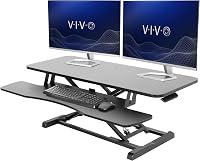
Some VIVO converter configurations pair a riser with a dual monitor mount. The exact version matters, since the VIVO manual converter below is a different model without a monitor mount.
If you want electric height adjustment and room for two screens, compare options in our dual-monitor electric converter guide.
Separate monitor arm for more positioning choices
A separate arm can help you place a screen higher, farther back, or at an angle that suits your layout. It makes sense only if the converter accepts the clamp and can support the load and leverage.
Vari describes its monitor arms as VESA-compatible and says its dual-monitor arm has a universal desk clamp. Confirm compatibility with the converter and check the screen limits for the arm you choose.
The Vari Pro Plus 36 arrives assembled, with an upper tier for 2 monitors and a lower deck for a keyboard and mouse. For lift and cable instructions, see how to use a VariDesk.
Its spring-assisted lift and dual stability bars are useful features to compare when a loaded converter needs to move between sitting and standing.
Fixed monitor riser for a simpler screen lift
A fixed riser can raise one screen without adding an adjustable arm. Choose this style if you want a shelf and storage space, and do not need the monitor to move independently.
The BONTEC 1home riser is 5.6 in high and has a shelf for small desk items. It is not a standing desk converter, so it will not raise your keyboard and work surface together.
If the screen needs frequent adjustment, an arm is a better match. Check that the riser’s width and load capacity suit your monitor and desk.
Manual converter for a straightforward raised workstation
A manual converter can suit you if you want to move the whole work surface up without adding a separate arm. Check its surface dimensions, supported load, and movement style against your equipment.
The VIVO manual converter lifts straight upward and adjusts from 4.5 to 20 in. Its keyboard tray rises with the top surface, and the product information describes the top as suitable for dual monitors.
This model does not include a monitor arm. If you add one, verify clamp fit and account for the arm and screens within the converter’s limits.
How do you set up a converter and monitor mount safely?
Set up the converter on a level desk, attach the arm as directed, and test movement before adding your full workload. Follow the instructions for both products, since their limits apply independently.
- Measure the desk and converter footprint, including the clamp’s required clearance.
- Check the monitor’s VESA pattern and weight against the arm’s limits.
- Place the converter flat, with the keyboard tray and lifting path clear.
- Attach the arm only at an approved mounting point, following its instructions.
- Install the monitor and route cables with enough slack for the full range of motion.
- Raise and lower the converter slowly, checking for tilt, slipping, or blocked movement.
Keep the screen centered and avoid pulling it far beyond the converter’s footprint. If the setup rocks, shifts, or strains during movement, stop and check the mounting instructions and load limits before using it.
How do you choose the right standing desk converter with monitor mount?
Choose a standing desk converter with monitor mount by matching the arm to the monitor, then confirming the converter can take the clamp and total load. Measure the workspace with the screen, keyboard, and mouse in place.
Pick a built-in mount for a matched setup, a separate arm for more screen movement when compatibility is confirmed, or a fixed riser when you only need to raise a screen. For general desk and frame decisions, see how to choose a standing desk and how to choose a standing desk frame.
Frequently asked questions
Can you attach a monitor arm to a standing desk converter?
Sometimes, but the converter must have a compatible edge or mounting point, and the arm clamp must fit it securely. Check the converter’s shape and thickness, the arm’s clamp range, and the monitor’s weight.
A separate monitor stand may be a better fit if the converter does not support an arm clamp.
How much weight should a monitor mount support?
Add the weight of each monitor without its stand, then compare the total with the mount’s stated screen capacity. Leave a margin if you plan to add a webcam or other attached gear, and check the converter’s total desktop limit separately.
A mount limit does not raise the converter’s capacity.
Do monitor mounts fit every screen?
No. A screen needs a compatible VESA hole pattern and must stay within the mount’s supported size and weight range.
Check the monitor manual for those details before buying, and confirm that the arm’s movement and clamp suit the converter’s available space.
Is a monitor riser the same as a monitor mount?
No. A riser supports a monitor on a shelf, while an arm mount holds it on an adjustable arm attached to a desk or converter.
A shelf can raise a screen, but it does not provide the same positioning range as an articulated arm.