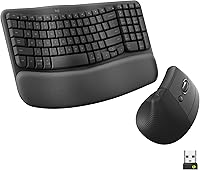
What Does the Joystick on a Vertical Mouse Do?
A joystick on a vertical mouse gives your thumb an extra directional control. It may handle scrolling, cursor movement, or assigned commands, while the main buttons still handle clicking.
On this page (9 sections)
- What does a joystick on a vertical mouse control?
- How is a joystick different from mouse buttons?
- Does a vertical mouse need a joystick?
- What should you check before buying a vertical mouse with joystick?
- Which vertical mice are useful alternatives?
- Is a joystick better than extra mouse buttons?
- How should you set up a vertical mouse with joystick?
- What are the trade-offs of a vertical mouse with joystick?
- Final answer: is a vertical mouse with joystick worth it?
A vertical mouse with joystick gives your thumb an extra directional control for tasks such as scrolling, cursor movement, media commands, or shortcuts. The joystick is different from ordinary mouse buttons because it can respond to direction or movement instead of only registering a click.
A vertical mouse changes the position of your hand, while the joystick changes what your thumb can do. These are separate features, so a mouse can be vertical without having a joystick.
What does a joystick on a vertical mouse control?
A joystick usually controls an action based on the direction you push it. The exact function depends on the mouse design, its software, and the app you use.
Possible assignments include:
- Scrolling through a long page
- Moving a cursor or pointer
- Switching between browser tabs
- Controlling media
- Triggering keyboard shortcuts
- Moving through menus or documents
A joystick may have several directions, such as up, down, left, and right. Some controls also respond when you press them, creating another command in addition to the directional inputs.
The useful idea is simple: your thumb gets more than a single click target. That can reduce the need to move your hand to the keyboard for repeated commands.
How is a joystick different from mouse buttons?
A normal mouse button detects a press, while a joystick can detect the direction or distance of thumb movement. A button is best for a single command, but a joystick can group several commands into one control.
For example, a thumb button might move to the next browser page. A joystick could move up or down through a document, switch between tabs, or perform another action based on its direction.
The terms can overlap in product descriptions. A small thumb control may be called a joystick even if it has only a few fixed directions, so look for details about its inputs and assignments.
Your main left and right buttons still serve their usual roles. They select text, open links, drag windows, and activate controls, while the joystick adds optional thumb input.
Does a vertical mouse need a joystick?
No, a joystick is optional. The main reason to choose a vertical mouse is its upright hand position, which may feel more natural to people who prefer a handshake-style grip.
A joystick can be useful if you want thumb-operated commands without reaching for keyboard shortcuts. It may be unnecessary if you mainly browse, edit documents, and use the scroll wheel.
Before choosing a model, compare the grip angle, hand orientation, button placement, connection method, and software support. Our guide to ergonomic keyboard mouse options covers how the mouse fits into a wider desk setup.
What should you check before buying a vertical mouse with joystick?
Check the joystick's position, direction support, and available assignments before looking at general ergonomic features. A control that sits too high, too low, or too far forward may not suit your thumb.
Look for these details:
Is the joystick easy to reach?
Your thumb should rest near the control without stretching. If the joystick sits beside a thumb rest, check whether you can use both without changing your grip.
Hand size matters here. A control that feels close to one person may feel awkward to another, especially on a tall vertical mouse.
Can you change what the joystick does?
Programmable controls are more useful when you can assign them to the shortcuts you already use. Check whether the mouse supports assignments on your operating system and whether the functions apply across the apps you use.
If the mouse has fixed commands, those may still work well for browsing or scrolling. They give you less flexibility if your preferred shortcuts change.
Does the grip suit your hand?
A vertical shape is not automatically comfortable for every user. Check whether the mouse is right-handed, ambidextrous, or shaped for a particular grip before ordering.
People who prefer a trackball may also want to compare trackball mouse vs regular mouse before choosing a vertical design.
Which vertical mice are useful alternatives?
The products below are vertical ergonomic mice, but their details do not identify a joystick. They are useful alternatives if you want the upright grip and standard mouse controls without assuming that every vertical mouse includes a thumb joystick.
For another upright mouse option, read the Logitech Lift mouse review.
Anker 2.4G Wireless Ergonomic Mouse
The Anker 2.4G Wireless Ergonomic Mouse is a right-handed vertical mouse with a 2.4 GHz USB receiver, optical tracking, 800/1200/1600 DPI settings, and next and previous buttons. It uses 2 AAA batteries, which are not included, and its dimensions are 120 x 62.8 x 74.8 mm.
The 5-button layout gives you more controls than a basic two-button mouse. Its next and previous buttons can help with webpage browsing, but they are still click buttons rather than a joystick.
It enters power-saving mode after 8 minutes of inactivity. Pressing the right or left button wakes it, and the package includes the mouse, USB receiver, and instruction manual.
Because it uses a USB receiver rather than Bluetooth, check that your computer has a suitable USB port. Anker also notes that USB 3.0 devices may cause interference, so port placement can matter.
Logitech Mouse MX Vertical
The Logitech Mouse MX Vertical uses a vertical layout with an adjustable angle and optical tracking. It connects through Bluetooth or a USB receiver, works with Mac and Windows operating systems, and has an average battery life of 4 months.
Its 4-button design gives you standard mouse controls without a joystick. Choose it if you want wireless connection choices and a vertical shape, but don't need directional thumb input.
The mouse has a maximum sensitivity of 4000 DPI and a stated wireless range of 5 meters. One included lithium polymer battery powers it.
If you want help setting up this model, see how to use a Logitech MX Vertical mouse. Mac users can also compare vertical mice for Mac before choosing a connection method.
Logitech MX Vertical Wireless Mouse Ergonomic Design
The Logitech MX Vertical Wireless Mouse Ergonomic Design has a 57° vertical angle, a textured graphite and rubber surface, and a thumb rest. Its 4000 DPI optical sensor includes a cursor speed switch for changing speed and accuracy.
This model has 4 buttons and connects through Bluetooth or an included USB receiver. It works with Windows, macOS, and iPadOS, and its average battery life is 4 months.
The cursor speed switch is not a joystick. It changes cursor speed with a button press, while a joystick would normally add directional thumb input.
The package includes the MX Vertical mouse, quick-start guide, receiver, and USB-C cable. Compare it with other Evoluent vertical mouse options if thumb placement is your main concern.
Is a joystick better than extra mouse buttons?
A joystick is better when you need directional or multi-command thumb input. Extra buttons are better when you want simple, repeatable clicks such as back, forward, copy, paste, or app shortcuts.
A joystick can reduce the number of separate buttons needed for several directions. It can also feel less familiar at first because you must learn how each direction maps to an action.
Buttons are easier to understand and often easier to press accurately. They may suit office work where you use only a few repeated commands.
Think about your daily actions rather than the feature name. If you move through documents often, directional control may help.
If you only need browser back and forward, two thumb buttons may be enough.
How should you set up a vertical mouse with joystick?
Start with the mouse close to your keyboard and keep your forearm relaxed. Let your hand rest around the grip instead of squeezing the shell, then place your thumb where it can reach the joystick without stretching.
Assign the most frequent commands first. Test one direction at a time, then use the mouse in your normal apps before adding more shortcuts.
Keep the pointer speed moderate while you learn the grip. A very high setting can make small movements harder to control, while a very low setting may require more arm movement.
If your desk setup needs a better mouse position, compare keyboard trays for standing desks. Keep the mouse surface level and leave enough room for your forearm to move.
What are the trade-offs of a vertical mouse with joystick?
A vertical mouse with joystick can put more commands under your thumb, but it also adds another control to learn. The larger shape may take time to feel natural, especially if you have used a flat mouse for years.
A joystick may help with navigation, but it does not replace a comfortable grip. If the mouse is too large, too tall, or poorly matched to your hand, the extra control may not feel useful.
A standard vertical mouse can be the better choice when you want a simpler layout. The Anker model offers next and previous buttons, while both Logitech models offer vertical designs with standard buttons and different connection features.
Choose a joystick if directional thumb commands are part of your work. Choose a standard vertical mouse if your priority is the grip angle, pointer control, and familiar buttons.
Final answer: is a vertical mouse with joystick worth it?
A vertical mouse with joystick is worth considering when you want thumb-operated directional commands or shortcuts. It is not necessary for an upright grip, and many vertical mice use ordinary buttons instead.
Pick a joystick model when its control assignments match the way you work. Pick the Anker for a right-handed USB receiver design with next and previous buttons, or choose a Logitech MX Vertical model when Bluetooth, USB receiver support, or a 4000 DPI sensor matters more than joystick input.
Frequently asked questions
What does a joystick on a vertical mouse do?
A joystick adds a small directional control under your thumb. Depending on the mouse design and software, it may control scrolling, cursor movement, media commands, or app shortcuts.
It is separate from the main left and right buttons, which still select, open, and drag items.
Is a joystick the same as a thumb button?
No. A thumb button usually registers one click for one assigned action, while a joystick can detect direction or movement.
Some devices call a small control a joystick even when it supports only a few directions, so check the control layout before buying.
Do vertical mice always have joysticks?
No. Most vertical mice use a raised grip, a scroll wheel, and several standard buttons without a joystick.
A vertical mouse with joystick combines the upright hand position with an extra thumb control, but that feature is not part of the definition of a vertical mouse.
Are the mice in this guide vertical mice with joysticks?
The Anker 2.4G Wireless Ergonomic Mouse and the two Logitech MX Vertical models are vertical ergonomic mice, but the supplied product details do not identify a joystick. They may suit shoppers who want an upright grip without adding a joystick control.